
Meta Page Doesn’t Qualify for Recommendation
What to Do If Your Facebook Page Is No Longer Being Recommended by Meta
If you’ve received a concerning email from Meta stating that your Facebook Page is no longer being recommended, you’re not alone—and there is a solution.
Meta periodically reviews Facebook Pages to ensure they comply with Meta’s Terms of Service and Community Standards. These standards are broad, high-level policies designed to prevent the distribution of sexual, violent, profane, misleading, or hateful content. If Meta determines that a Page may be out of compliance, it can temporarily limit how that Page is suggested to new audiences.
To regain recommendation eligibility, the Page Manager must either resolve the flagged content issues or formally request a review through Meta’s system.
Why the “View Details” Button Is Confusing
When you click the blue “View Details” button in the email, Meta typically redirects you to your Facebook Page. Unfortunately, this step alone doesn’t clearly explain what content triggered the restriction or how to fix it—unless you know exactly where to look and what actions to take next.
Understanding where to navigate in Meta Business tools, how to interpret recommendation violations, and how to submit a proper review request is key to restoring your Page’s visibility and performance.
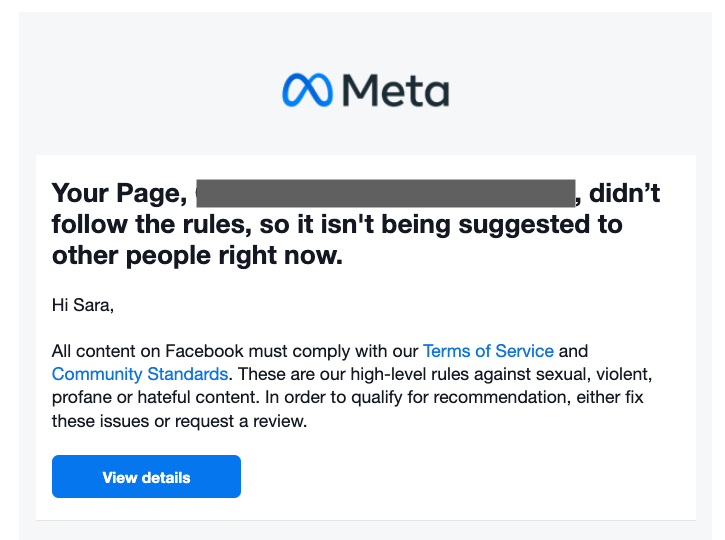
The email I got for each alcohol-related page where I have admin access.
How to Turn On Age Restrictions for Alcohol-Related Facebook Pages
If your business involves alcohol sales or promotion, Meta requires your Facebook Page to be properly categorized as alcohol-related. Follow the steps below to enable age restrictions and improve compliance with Meta’s recommendation policies.
Step-by-Step Instructions
Log in to Facebook and navigate to your personal profile.
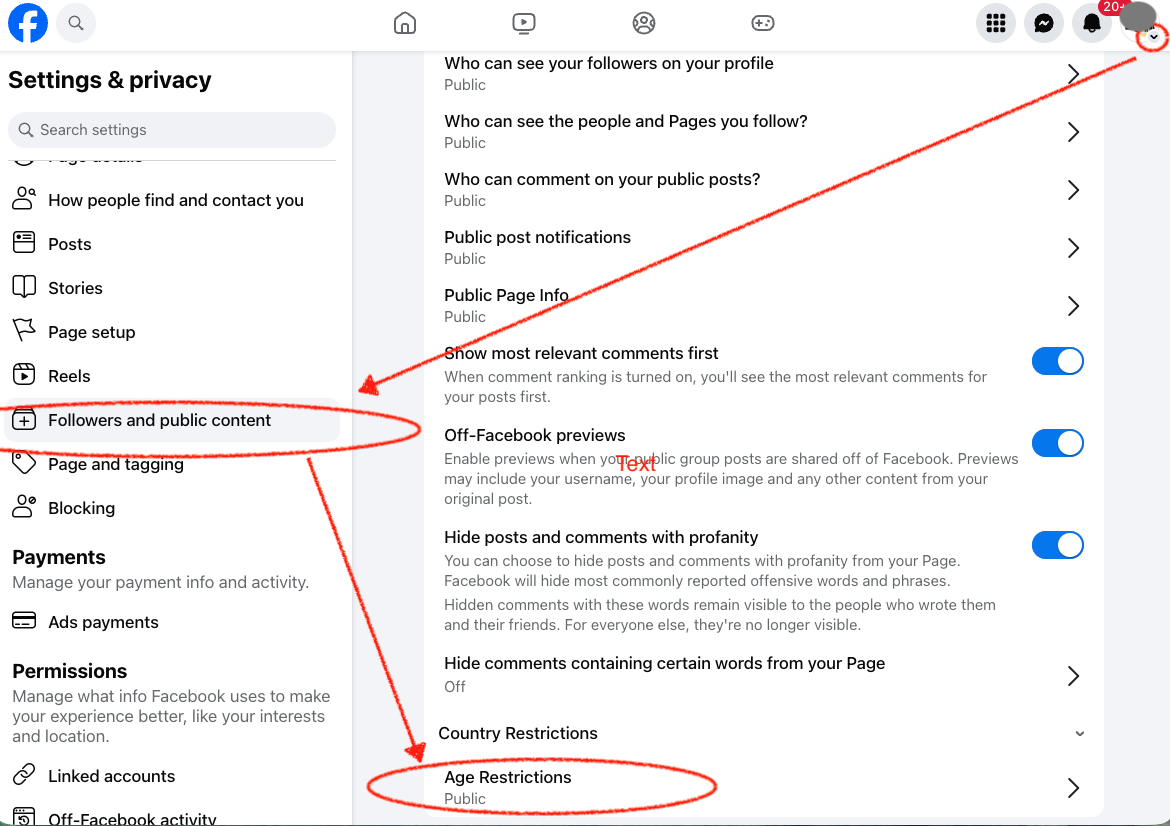
In the top-right corner, click the profile icon and select “Switch to…”, then switch to your business Page (e.g., your liquor store or alcohol-related business).
Once you’re viewing the Page as the business, click the profile icon again.
Select Settings & Privacy, then click Settings.
In the left-hand navigation menu, click Followers and Public Content.
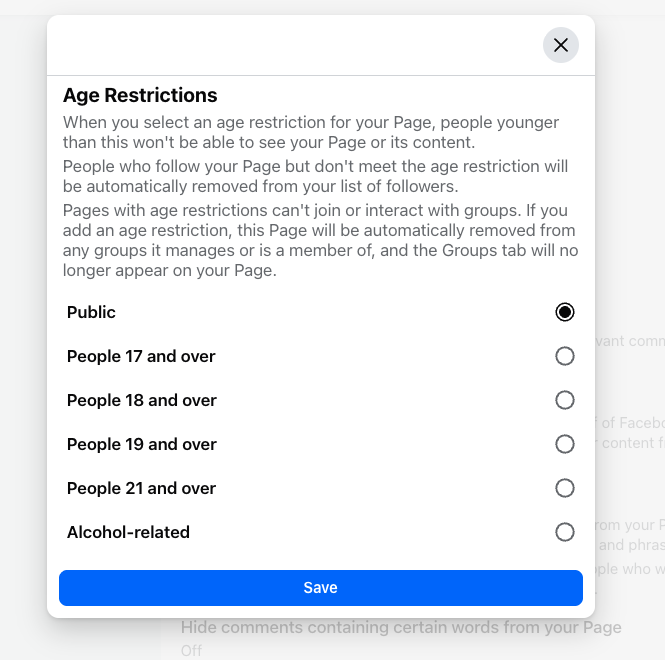
Scroll to the very bottom of the page to find Age Restrictions.
If the setting currently shows Public, click it and change the selection to Alcohol-related.
Save your changes.
Updating this setting signals to Meta that your Page contains age-restricted content and helps prevent ad rejections, recommendation limits, and compliance warnings.
Why This Matters for Alcohol-Related Meta Ads
Properly setting age restrictions and Page classifications makes running alcohol-related Meta ads significantly smoother. It reduces ad rejections, improves delivery, and helps ensure your campaigns reach the correct, compliant audience from the start.
If you’d like support with Meta Ads setup, compliance, or ongoing campaign management, I’d be happy to schedule a call to see whether we’re a good fit.
I’m Meta Business Strategy Certified, experienced in navigating alcohol advertising restrictions, and focused on building goal-driven campaigns that perform—without unnecessary trial and error.